Lesson 11 of 23
Rulers, guides, snapping and measuring
Drag guides out of the rulers, snap to ends, middles and edges, and measure anything on the pattern.
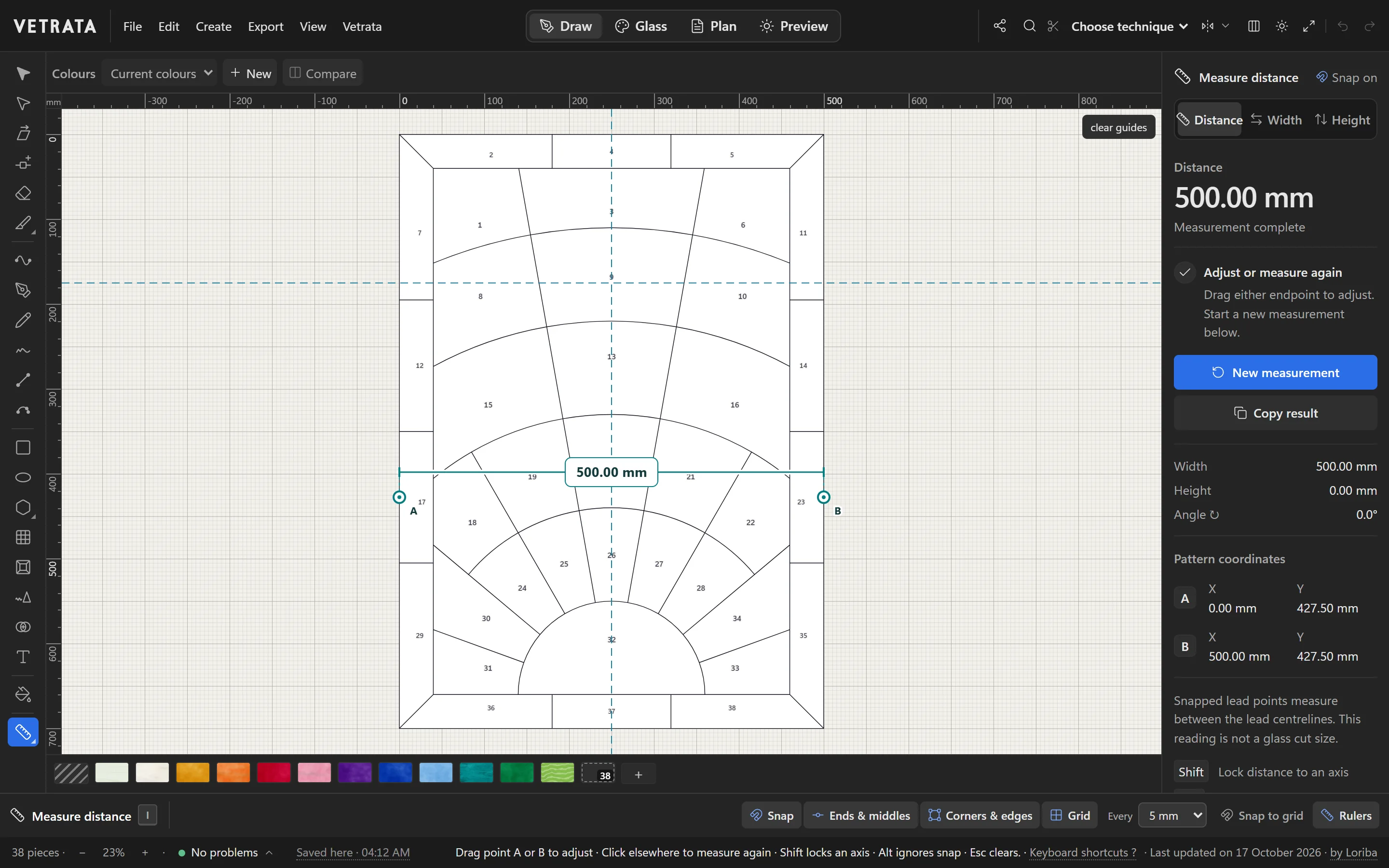
The rulers, guides and snapping work the way they do in Illustrator, measured in millimetres or inches.
-
1
Rulers and guides
Press U to show or hide the rulers. Drag out of a ruler to drop a guide, and drag a guide back into the ruler to remove it.
View has Lock guides, Show guides and Clear guides. Guides belong to the screen unless you choose Keep guides with the pattern.
-
2
Snap
Press N to turn snapping on or off. In the bar under the drawing, Ends & middles and Corners & edges choose what a point snaps to.
-
3
The grid
Press G for the grid, and set its spacing beside it in the bar. Snap to grid makes points land on the grid's lines.
-
4
Measure
Measure (I): click two points, or drag between them, for the distance, width and height. Drag either end to adjust. Press I again to measure objects.
Points snapped to leads measure between the lead centrelines, so a reading is not a glass cut size.
 Trace a photo, sketch or scan
More in Draw
 Draw
Select, move and reshape
Move whole shapes, bend leads, drag anchors and round corners with the two selection tools.
5 steps · 2 min
Draw
Select, move and reshape
Move whole shapes, bend leads, drag anchors and round corners with the two selection tools.
5 steps · 2 min
 Draw
Draw lead lines
Straight leads with the Line tool, curves with the Pen and Curve tools, and freehand strokes that come out clean.
5 steps · 2 min · Try it in the page
Draw
Draw lead lines
Straight leads with the Line tool, curves with the Pen and Curve tools, and freehand strokes that come out clean.
5 steps · 2 min · Try it in the page
 Draw
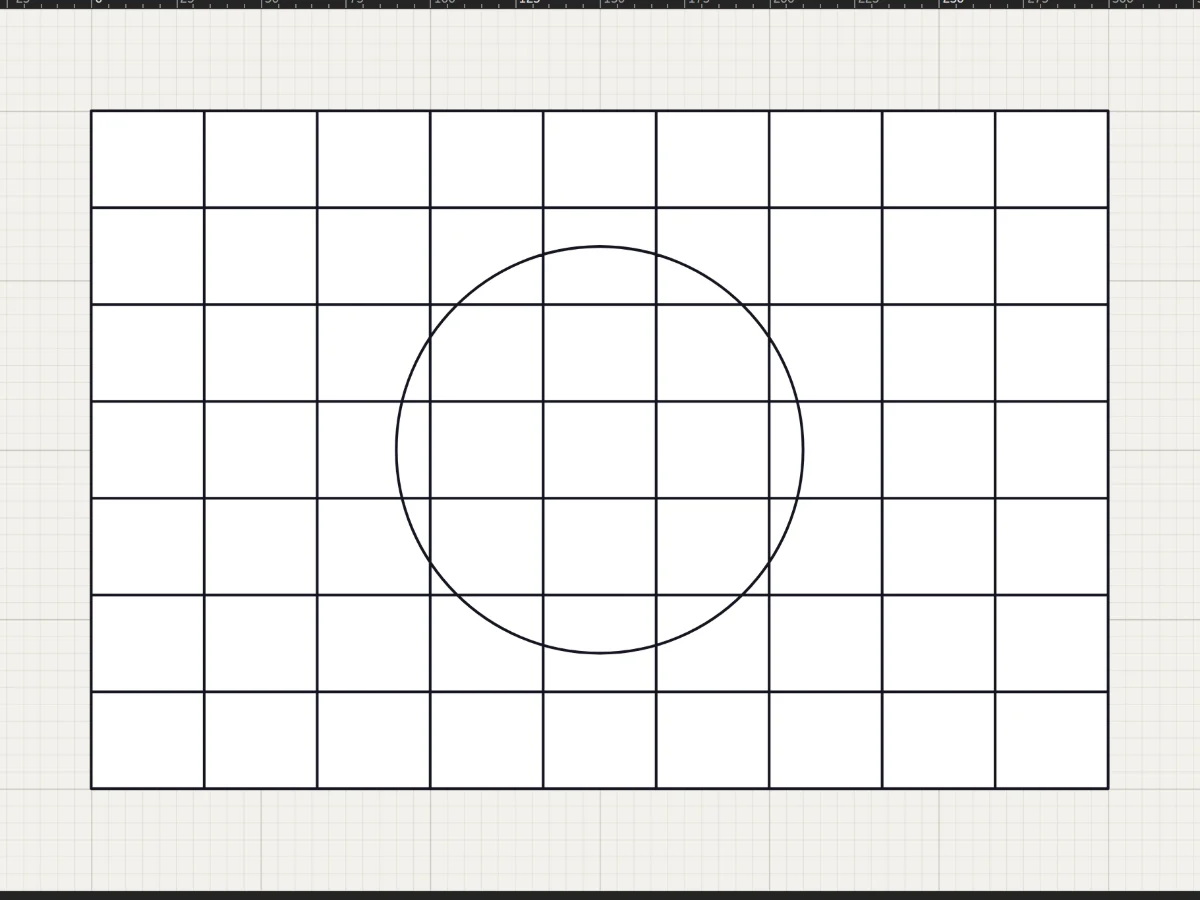
Shapes, grids and radial designs
Rectangles, circles, stars, rosettes and quarry grids in a few drags, each one cut into the leadwork.
5 steps · 2 min · Try it in the page
Draw
Shapes, grids and radial designs
Rectangles, circles, stars, rosettes and quarry grids in a few drags, each one cut into the leadwork.
5 steps · 2 min · Try it in the page