Lesson 8 of 23
Split, cut and join pieces
Add joints, remove leads, cut with the Knife, divide a piece evenly and join pieces with the Shape Builder.
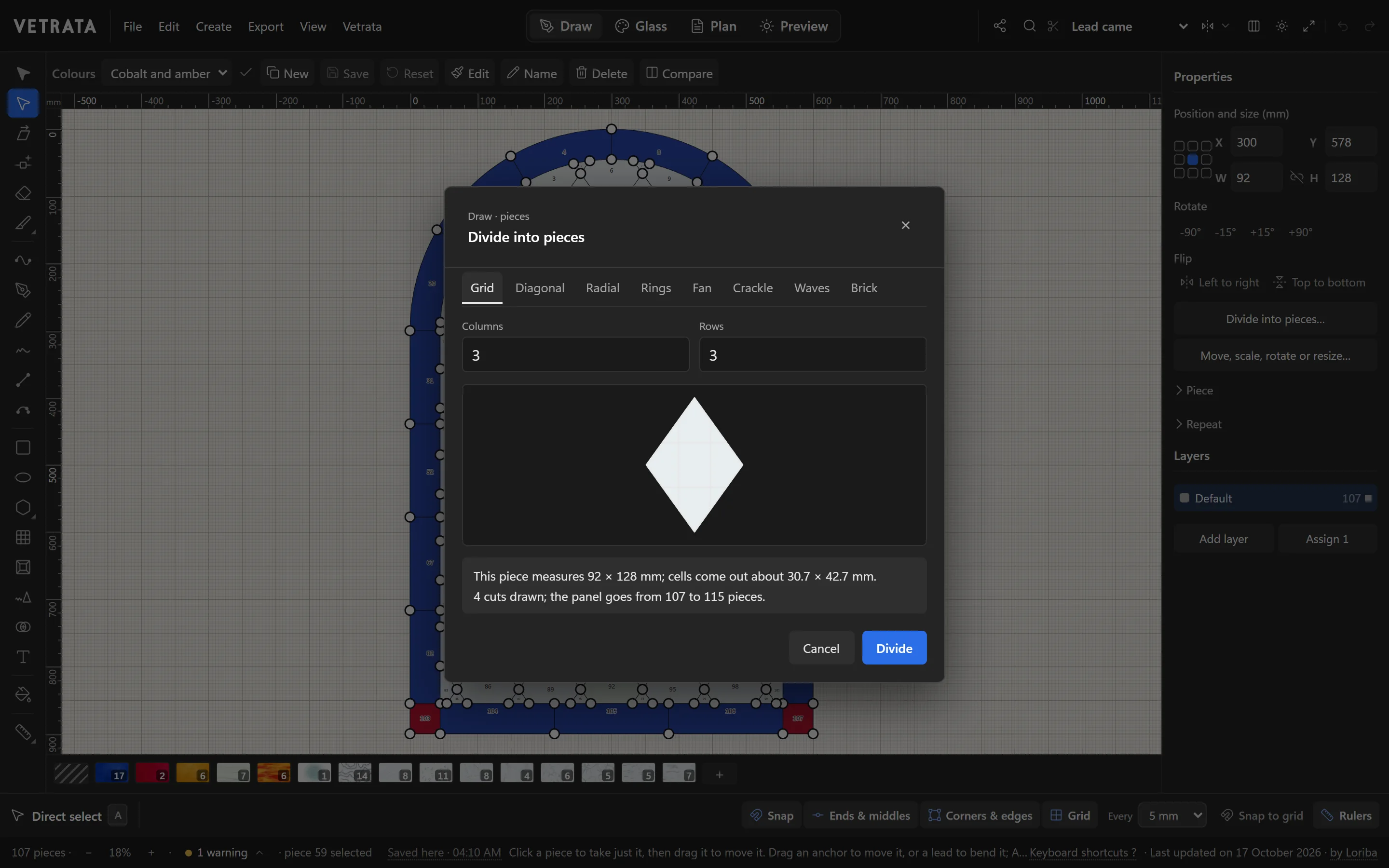
A piece too big to cut, or two pieces that ought to be one: these tools change how a panel is divided without redrawing it.
-
1
Add a joint
Split a lead (S): click a lead to add a joint there, an anchor you can then drag.
-
2
Remove leads
Remove a lead (D): click a lead to remove it, or drag across several to scrub them all away. The pieces beside them become one.
-
3
Cut with the Knife
Knife (ShiftK): drag across pieces to cut them along your stroke. Press ShiftK again for the Straight knife.
-
4
Divide a piece evenly
Select a piece and click Divide into pieces… in the Inspector. Choose a way to divide it, from a plain grid to rings, a fan, crackle, waves or brick, and set the numbers.
The dialog says how big the new pieces come out and how many pieces the panel will have before you click Divide.
-
5
Join with the Shape Builder
Shape Builder (ShiftM): with two or more pieces selected, drag across them to join them into one. Alt-drag removes a region instead.
Tip Edit › Join two anchors with a lead (CtrlJ) draws a lead straight between two anchors.
Try it
Now do it, with the Studio's own engine
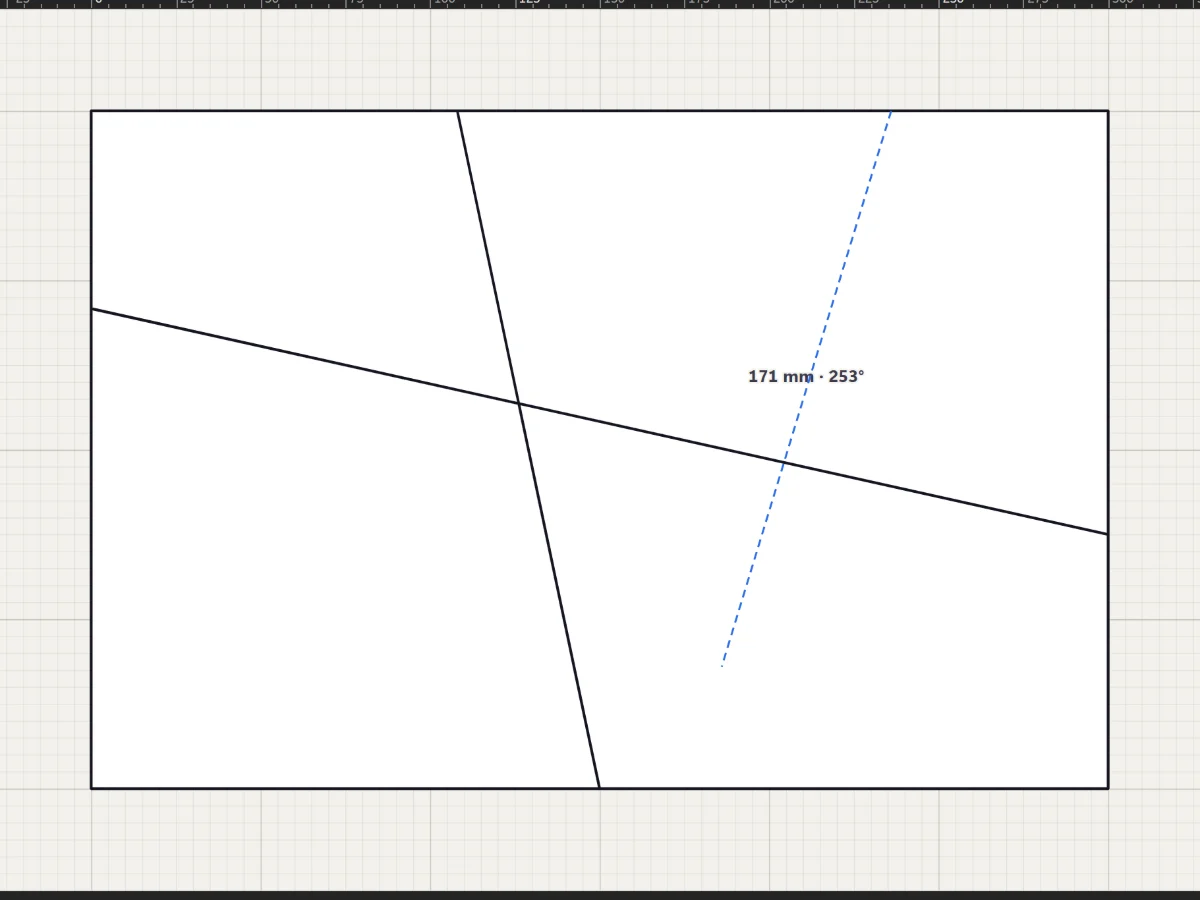
- Draw two leads across the field
- Take one out with Remove a lead
 Select, move and reshape
More in Draw
 Draw
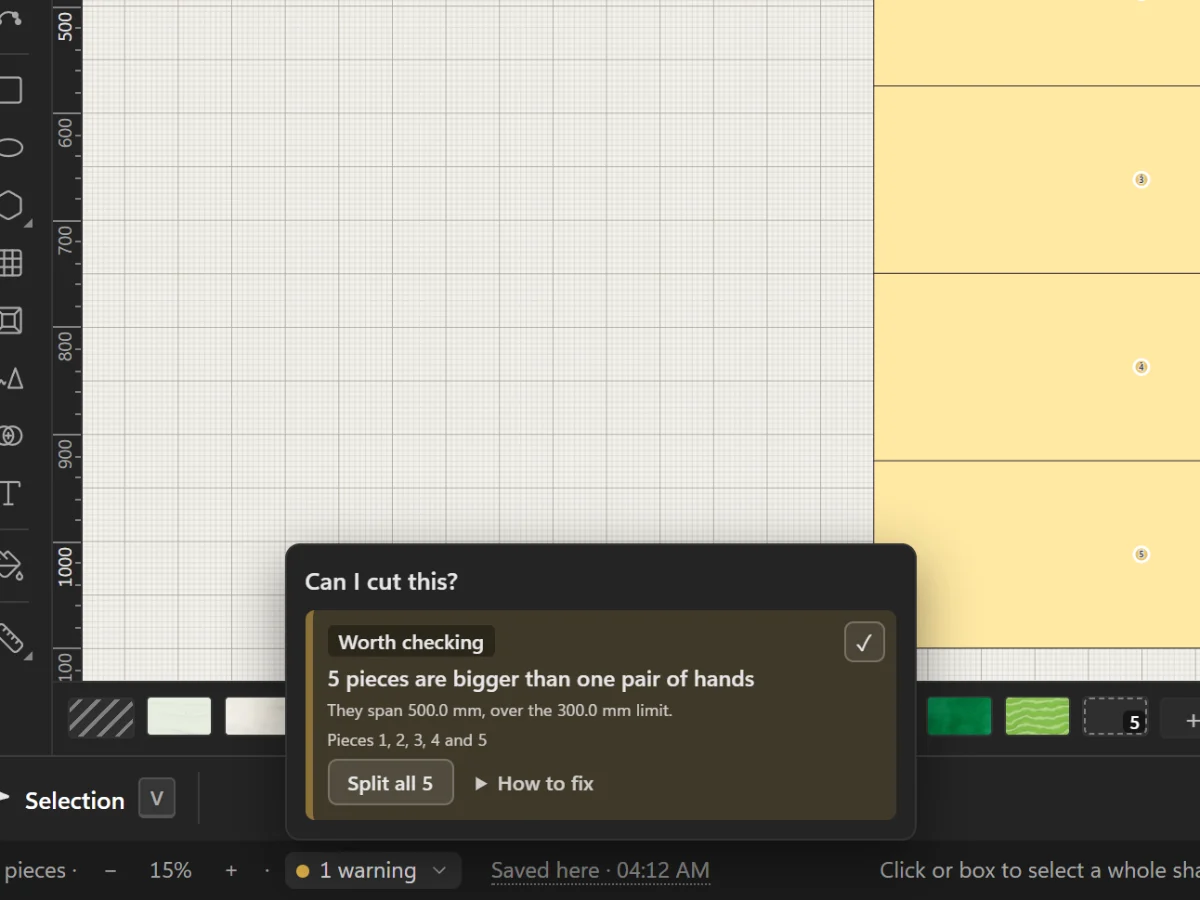
Check that the glass can be cut
Read the Studio's warnings about pieces glass won't take, and fix them with the button beside each one.
4 steps · 2 min · Try it in the page
Draw
Draw lead lines
Straight leads with the Line tool, curves with the Pen and Curve tools, and freehand strokes that come out clean.
5 steps · 2 min · Try it in the page
Draw
Check that the glass can be cut
Read the Studio's warnings about pieces glass won't take, and fix them with the button beside each one.
4 steps · 2 min · Try it in the page
Draw
Draw lead lines
Straight leads with the Line tool, curves with the Pen and Curve tools, and freehand strokes that come out clean.
5 steps · 2 min · Try it in the page
 Draw
Shapes, grids and radial designs
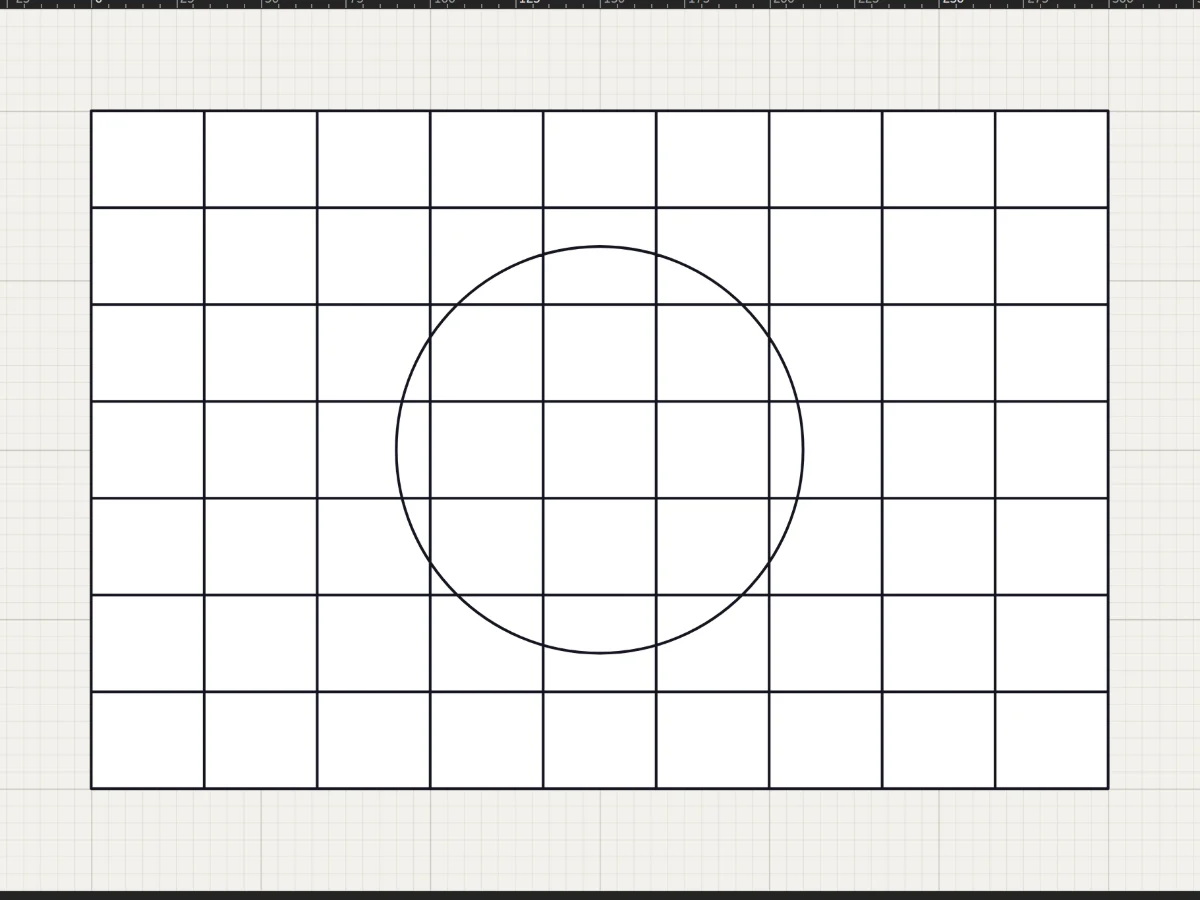
Rectangles, circles, stars, rosettes and quarry grids in a few drags, each one cut into the leadwork.
5 steps · 2 min · Try it in the page
Draw
Shapes, grids and radial designs
Rectangles, circles, stars, rosettes and quarry grids in a few drags, each one cut into the leadwork.
5 steps · 2 min · Try it in the page