Lesson 12 of 23
Check that the glass can be cut
Read the Studio's warnings about pieces glass won't take, and fix them with the button beside each one.
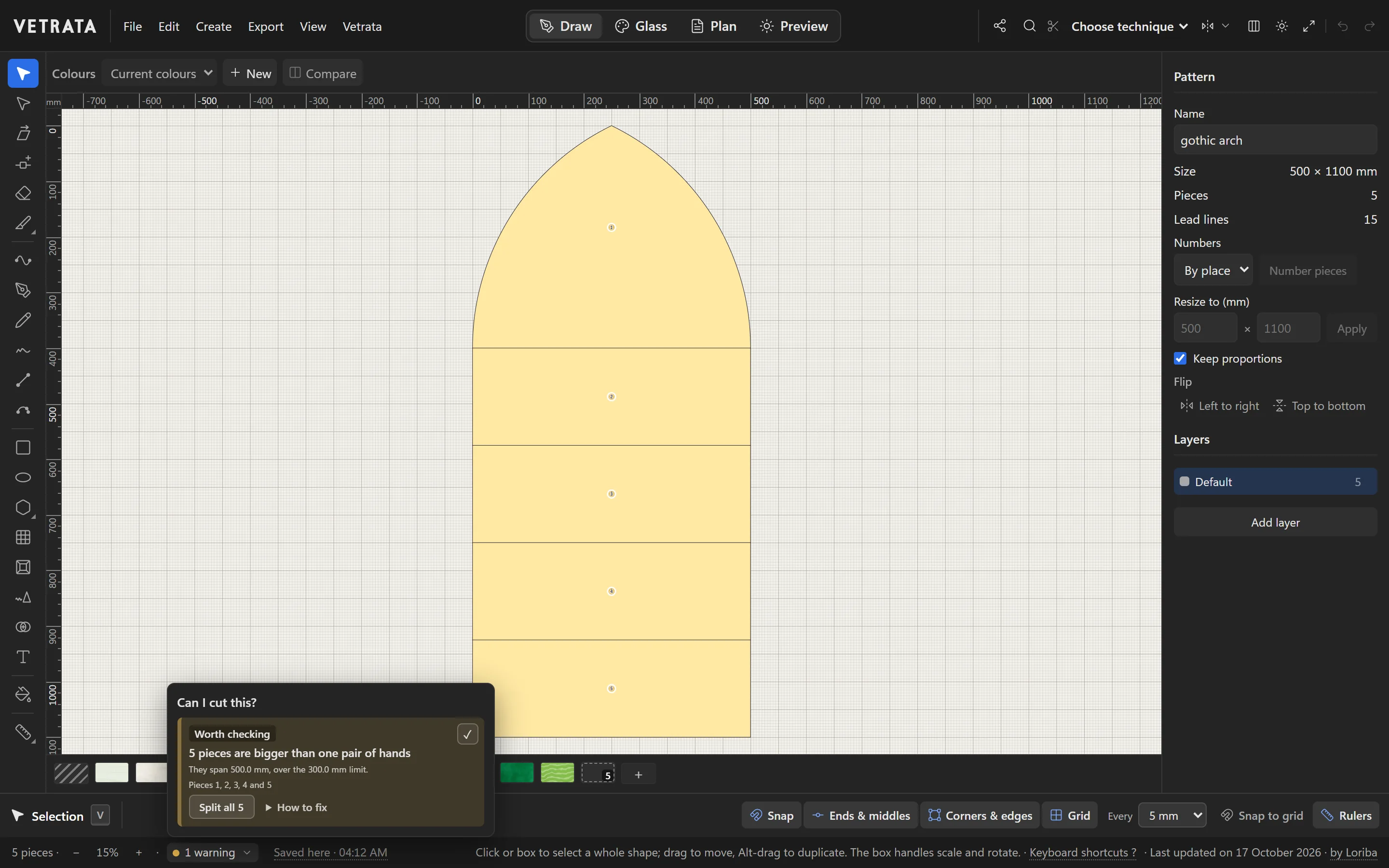
Glass has limits a drawing doesn't: an inside curve too deep to cut, a point too sharp, a sliver too thin, a piece too big to handle. The Studio checks the pattern for them as you draw.
-
1
Watch the status bar
Beside the zoom, the status bar says whether there is anything worth checking, such as “1 warning”. Click it to open Can I cut this?.
-
2
Read a finding
Each finding says what is wrong, which pieces it is on and by how much, in plain words. Pieces with a finding are tinted on the drawing so you can find them.
-
3
Fix it from the finding
Where there is a fix, it is a button on the finding, such as Split all 5. How to fix explains the rest.
-
4
Warnings are advice
Most findings are warnings: an experienced cutter may manage what the Studio would avoid. The checks follow your technique, since lead came and copper foil take different sizes of piece.
Set Lead came or Copper foil in the bar at the top right before you judge them.
Try it
Now do it, with the Studio's own engine
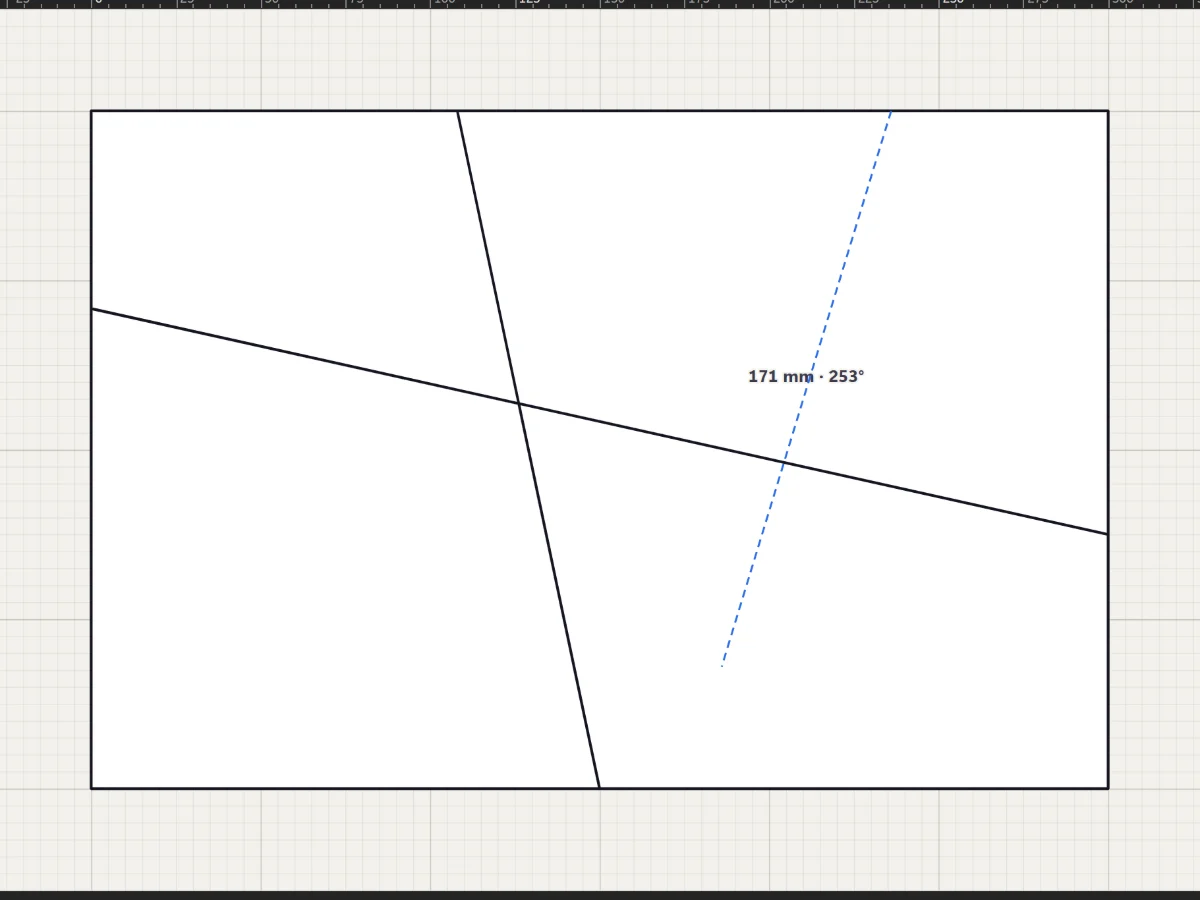
- Cut the field until the warning goes
- Make a sliver and read what it says
 Rulers, guides, snapping and measuring
More in Draw
 Draw
Split, cut and join pieces
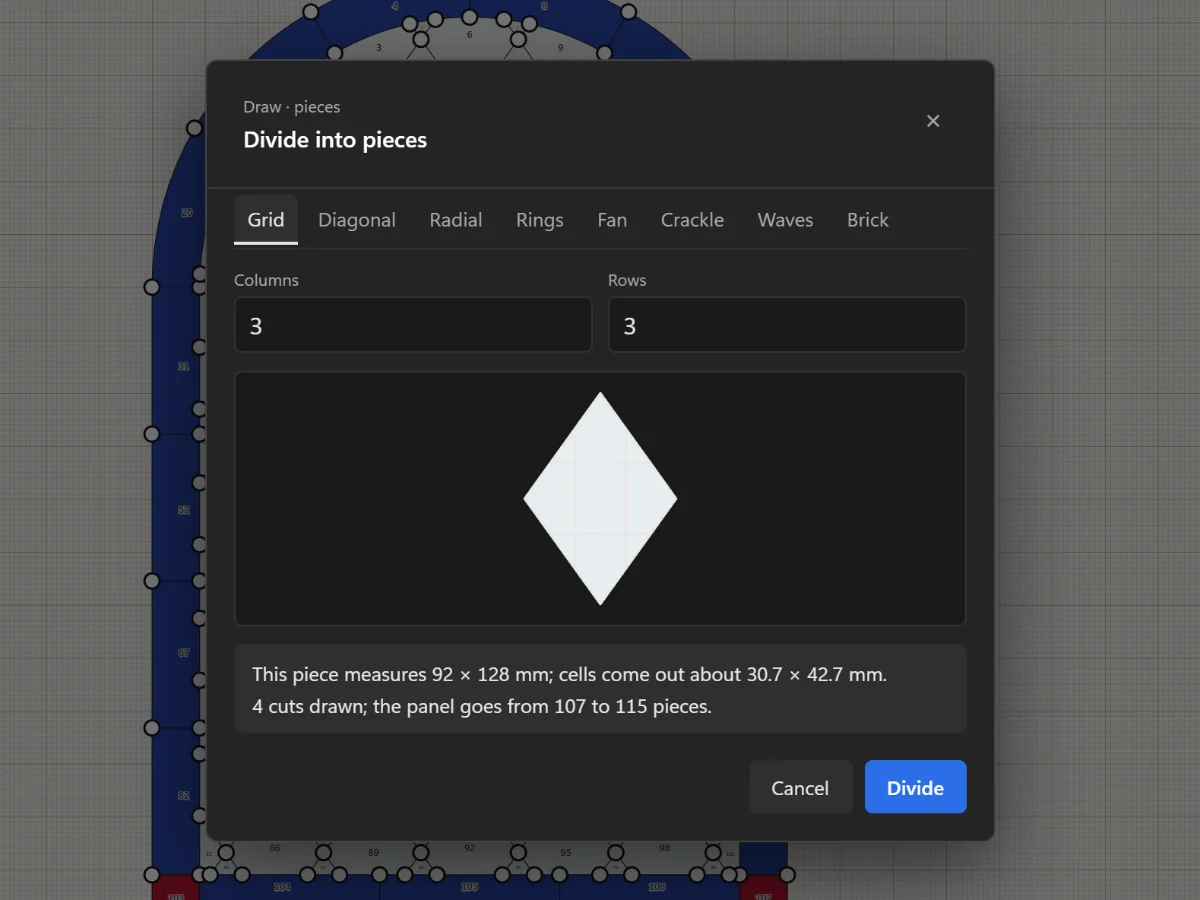
Add joints, remove leads, cut with the Knife, divide a piece evenly and join pieces with the Shape Builder.
5 steps · 2 min · Try it in the page
Draw
Split, cut and join pieces
Add joints, remove leads, cut with the Knife, divide a piece evenly and join pieces with the Shape Builder.
5 steps · 2 min · Try it in the page
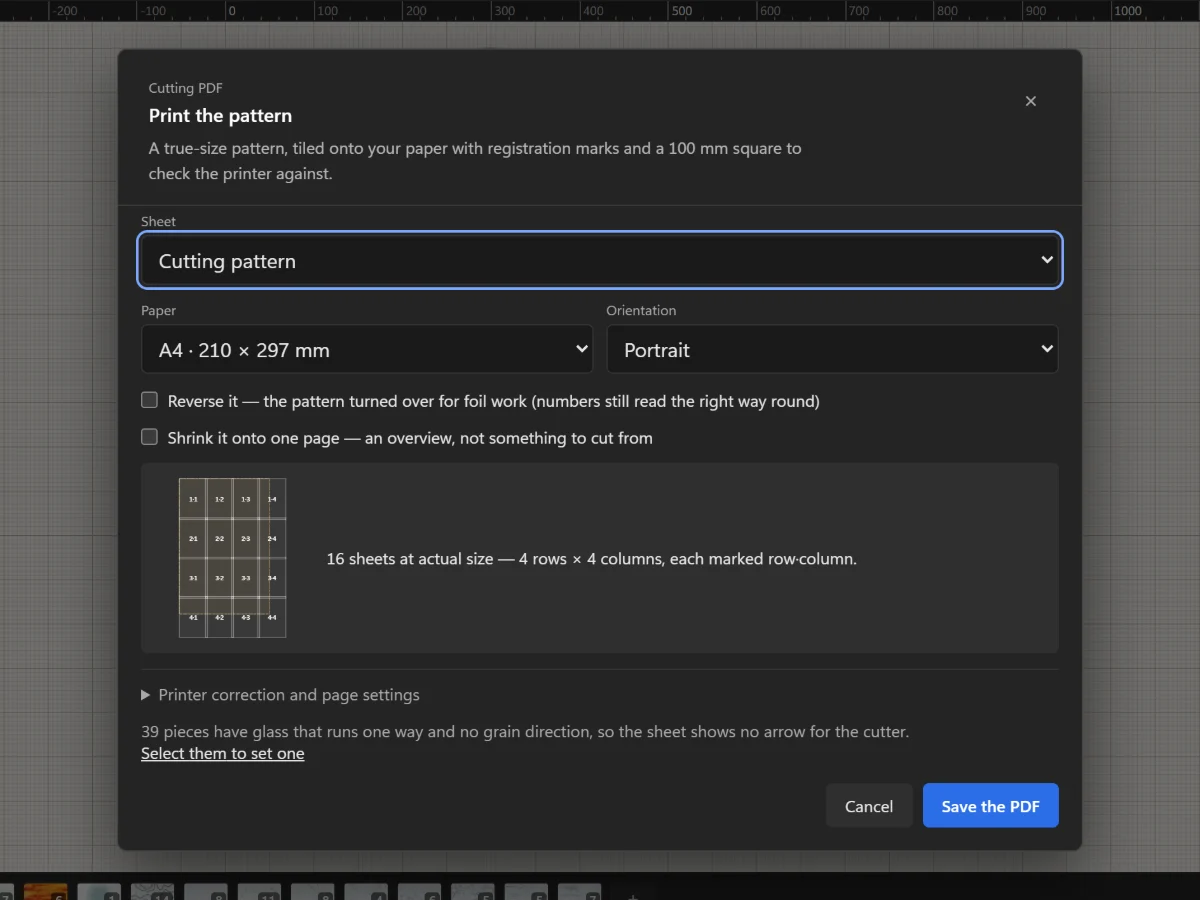 Plan and print
Print the cutting pattern true to scale
Tile the full-size pattern onto A4 or Letter with registration marks and a square to check your printer.
5 steps · 2 min
Draw
Draw lead lines
Straight leads with the Line tool, curves with the Pen and Curve tools, and freehand strokes that come out clean.
5 steps · 2 min · Try it in the page
Plan and print
Print the cutting pattern true to scale
Tile the full-size pattern onto A4 or Letter with registration marks and a square to check your printer.
5 steps · 2 min
Draw
Draw lead lines
Straight leads with the Line tool, curves with the Pen and Curve tools, and freehand strokes that come out clean.
5 steps · 2 min · Try it in the page